Getting started

Build with IntelliSend

Send SMS, verify one-time codes, and keep your application in sync with delivery events.

The REST API handles messaging. Webhooks bring updates to your server. MCP gives compatible AI clients read-only access to campaign and team reports.

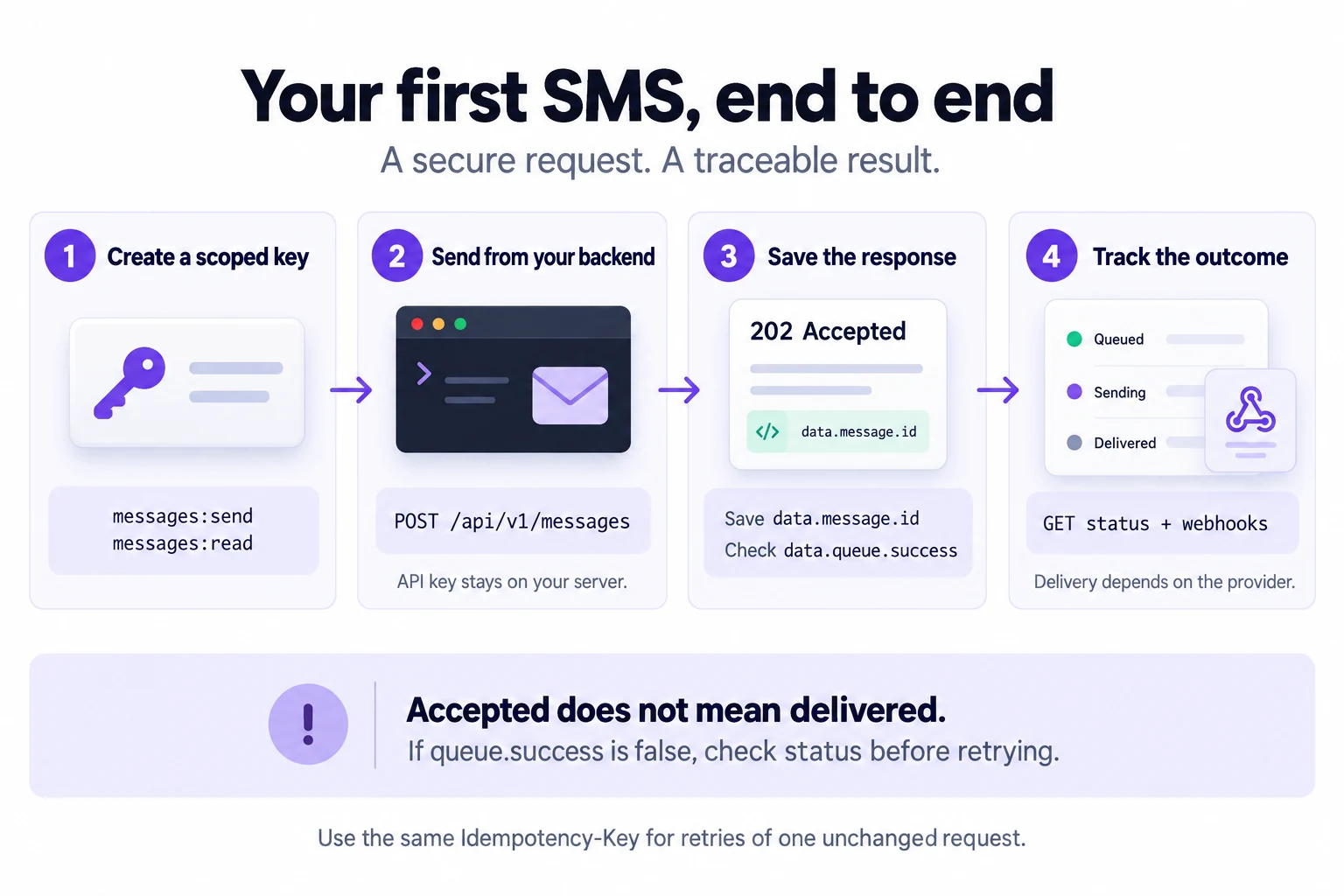
Create a scoped API key, send an SMS request from your backend, save the returned message ID and inspect queue.success, then track status and webhook updates. Accepted does not mean delivered.

Select the diagram to view it at full size, then follow the steps below.

1. Create an API key

Open Developer Tools → API Access in your workspace. Create a key with messages:send and messages:read, then copy it into your server's secret store. The full key is shown only at creation.

Your key also has a routing setting. The default is IntelliSend; you can choose a connected provider or failover route. Learn about routing.

2. Send your first SMS

Use your workspace's HTTPS origin as the base URL. Replace the example URL, API key, and phone number before running this request. Sending a request can send a real SMS.

curl --request POST 'https://your-workspace.example/api/v1/messages' \
  --header 'Authorization: Bearer {YOUR_API_KEY}' \
  --header 'Accept: application/json' \
  --header 'Content-Type: application/json' \
  --header 'Idempotency-Key: order-1042-confirmation' \
  --data '{
    "recipients": ["+61400000000"],
    "message": "Your order 1042 is confirmed.",
    "message_purpose": "transactional",
    "reference": "order-1042"
  }'

The normal response is 202 Accepted with data.message.id and data.queue.success: true. Save the message ID for status checks and your reference for reconciliation.

Accepted is not delivered. A 202 response can also mean the request was saved with data.queue.success: false. Check its status before retrying. Provider submission and handset delivery are separate stages.

3. Check the message status

Replace 123 with data.message.id from the send response.

curl 'https://your-workspace.example/api/v1/messages/123' \
  --header 'Authorization: Bearer {YOUR_API_KEY}' \
  --header 'Accept: application/json'

sent_count counts messages submitted to a provider. Use webhooks to follow delivery receipts where supported by the provider.

Choose your next step

You want to… Use
Send transactional or marketing SMS Send SMS, with routing and consent rules
Send and verify a one-time code Follow the OTP service setup, then send OTP and verify OTP
Receive delivery and campaign updates Signed webhooks
Ask an AI client about campaign performance MCP & AI
Import the API into your tools OpenAPI or Postman

Every endpoint includes a JSON payload where applicable, cURL, Node.js, PHP, and Python examples. All credentials and responses shown here are illustrative.

Getting started

Authentication

Use a scoped API key for REST requests and OAuth for MCP connections.

REST API keys

Send your key as a bearer token on every API request. Send Accept: application/json to receive JSON errors, and Content-Type: application/json for JSON bodies.

Authorization: Bearer {YOUR_API_KEY}
Accept: application/json
Content-Type: application/json

Create keys in Developer Tools → API Access. Choose the smallest set of abilities your integration needs.

Ability Allows
messages:send POST /api/v1/messages
messages:read GET /api/v1/messages/{campaign}
otp:send POST /api/v1/otp/send
otp:verify POST /api/v1/otp/verify

A key cannot grant permissions its owner does not have. Workspace access, account status, Developer Tools permissions, and campaign permissions still apply. Use the workspace URL that owns the key.

Store and rotate keys

Keep keys in server-side environment variables or a secret manager. Do not embed them in browser JavaScript, mobile apps, public repositories, or URLs.

Create a replacement key, update your integration, confirm it works, then revoke the old key. Revoking a key stops subsequent requests authenticated with it. Keep its name descriptive so your team can identify the integration.

MCP uses OAuth

An MCP client connects to https://your-workspace.example/mcp using the browser-based authorization flow and the mcp:use scope. An API key is not an MCP OAuth credential.

The connection inherits the signed-in user's current workspace permissions. You can review and revoke authorized clients in Developer Tools → MCP & AI. A listed authorization records access granted to a client; it does not prove the client is currently online.

Set up an MCP connection and explore its tools.

Getting started

Routing & marketing

Choose how messages leave IntelliSend, then apply the right message purpose and consent rules.

Routing priority

These routing rules apply to the messages API and OTP requests without a saved service. Saved OTP services own their provider and sender, and OTP never uses failover.

  1. Explicit routing fields in the request take precedence.
  2. Otherwise, IntelliSend uses the API key's saved routing.
  3. A key using the default routing sends through IntelliSend.

Workspace Quick SMS defaults do not control API requests. If a saved provider or route becomes unavailable, correct the routing configuration before retrying.

Use the API key's routing

Leave out routing_type, provider_slug, and failover_route_slug.

{
  "recipients": ["+61400000000"],
  "message": "Your appointment is confirmed.",
  "message_purpose": "transactional"
}

Choose a connected provider

Use the slug of an active provider connected to your workspace. Some providers require a registered sender_id. Replace both example values below with your connected provider's slug and an active sender registered with that provider.

{
  "recipients": ["+61400000000"],
  "message": "Your appointment is confirmed.",
  "routing_type": "direct",
  "provider_slug": "primary-sms",
  "sender_id": "YourBrand"
}

With routing_type: "direct", omitting provider_slug explicitly selects IntelliSend. To inherit the API key's routing, omit all routing fields instead.

sender_id is the actual sender name or number, not the provider name, display label, or database record ID. The managed default may appear as IntelliSend in the Send SMS form while its actual sender value is a configured phone number. Use that number for IntelliSend SMS requests. Registration is provider-specific: the selected provider must have that sender active, even if the same value is registered with IntelliSend.

Choose a failover route

Use an enabled route's slug. Do not include provider_slug with failover routing.

{
  "recipients": ["+61400000000"],
  "message": "Your appointment is confirmed.",
  "routing_type": "failover",
  "failover_route_slug": "sms-backup"
}

OTP provider requirements

OTP supports IntelliSend tenant credits and connected customer-funded providers. Each OTP uses one provider; failover routing is rejected.

Saved services under More services → OTP connect through service_slug. The API loads the saved purpose, code length, expiry, template, provider, and sender. Do not include routing or sender overrides with a service. API-key routing applies only to sends without a service. OTP uses a single recipient. See the OTP service guide for setup, billing, and payload examples.

For explicit sends without a service, omit sender_id to use the tenant's configured default sender, or supply an active, approved sender belonging to that tenant and provider. A purchased sender still uses tenant credits for delivery. IntelliSend supports Australian mobile numbers. Other providers use their own sender requirements and account balance.

One credit is reserved for the validated, single-segment OTP message and consumed on confirmed provider acceptance. A conclusive rejection releases it; a confirmed delivery failure refunds it once. A timeout retains the reservation for webhook/history recovery and never triggers automatic failover. OTP expiry or failure to verify does not refund an accepted message.

Send an Idempotency-Key for every logical send. Retry the same key and payload to inspect data.status (accepted, pending, or failed) without sending another code. Wait at least 30 seconds before a new send to the same recipient; an uncertain submission must be resolved before resending. A failed submission returns HTTP 502 and may be retried with a new key after the cooldown.

A successful OTP response means provider submission, not verified handset delivery. Verify using the returned data.request_id, the same recipient, and a key belonging to the same user. Existing integrations may continue verifying by the original purpose instead.

Marketing messages

Set message_purpose to marketing for promotional messages. IntelliSend applies its consent and suppression checks. Inspect the queue's requested, excluded, and accepted recipient counts; they can differ.

Use {opt_out_url} once to control where the secure opt-out link appears. When it is omitted, IntelliSend adds the link. The final message length includes the expanded link.

{
  "recipients": ["+61400000000"],
  "message": "Your member offer is ready. Opt out: {opt_out_url}",
  "message_purpose": "marketing",
  "reference": "member-offer-september"
}

For service updates, use transactional, which is also the default when the purpose is omitted. Choose the purpose that matches the message you are actually sending.

Integration guides

OTP services

Create a service in More services → OTP, then use its service_slug in your application's send request. IntelliSend loads the service's current purpose, code length, expiry, template, provider, and sender. Saving a service alone does not send a message or consume credits.

The flow: saved service → your server calls the send API → SMS provider submits the code → your server calls the verification API.

1. Configure a service and API key

Create a service such as Checkout verification with purpose transaction-approval, 6 digits, and a 5-minute expiry. Select one provider and a sender registered with that provider. IntelliSend lists its configured default and approved purchased senders; a connected provider can use its account default only when that provider supports it. Use the default verification message or choose an enabled transactional template. Create template opens the existing message editor and selects the new template when you return.

Open API credentials beside the empty-state create button, or inside What you can do below the populated table. Choose a key with otp:send and otp:verify. The key's owner needs permission to send through the Developer API; using a saved template also requires message.read. See authentication and permissions.

Keep the API key on your application's server, never in a browser or mobile client. Your server must bind the request ID and intended action to the user's session; only complete that action after successful verification.

2. Send a code

Select Copy payload in the service's actions. It includes the real, stable service_slug. Replace the example recipient and send it to POST /api/v1/otp/send:

curl --request POST 'https://your-workspace.example/api/v1/otp/send' \
  --header 'Authorization: Bearer YOUR_API_KEY' \
  --header 'Accept: application/json' \
  --header 'Content-Type: application/json' \
  --header 'Idempotency-Key: checkout-1042-attempt-1' \
  --data '{
    "recipient": "+61400000000",
    "service_slug": "0195f798-5a50-7bc7-a1b5-36e303be0024"
  }'

The example slug must be replaced with your service's slug. It is a UUID identifier, not the service name, purpose, or message-template slug. Renaming a service keeps its slug. A missing, deleted, or foreign-workspace service returns 422; the API never silently falls back to a default service.

When using service_slug, omit purpose, code_length, expires_in_minutes, template_slug, message_template, provider_slug, sender_id, routing_type, and failover_route_slug. Nonempty overrides are rejected. The saved service owns delivery; API-key routing does not change it.

A successful submission returns HTTP 202:

{
  "message": "OTP submitted.",
  "data": {
    "request_id": "0195f79a-c230-748b-b868-2792aa113579",
    "status": "accepted",
    "expires_at": "2026-09-24T12:05:00+00:00",
    "provider": "intellisend",
    "sender_id": "61485900180",
    "billing": {"source": "intellisend_credits", "status": "charged", "credits_charged": 1}
  }
}

Save data.request_id on your server. It identifies this challenge; the API does not return the generated code. accepted means provider submission, not confirmed handset delivery. If status is pending, retry with the same idempotency key and payload to check the outcome without sending another code.

3. Verify the code

When the user enters the SMS code, call POST /api/v1/otp/verify using the returned request ID, the same recipient, and an API key belonging to the same user who sent it:

{
  "recipient": "+61400000000",
  "request_id": "0195f79a-c230-748b-b868-2792aa113579",
  "code": "012345"
}

Use the same authorization and JSON headers as the send request. Keep code a string to preserve leading zeroes. Success returns 200 with {"message":"OTP verified."}. A wrong, expired, exhausted, or previously used code returns 422. A request ID alone cannot verify a code: the user, recipient, unexpired challenge, and code must all match.

Verification uses the challenge saved at send time. Editing or deleting the dashboard service does not change an already issued challenge. Existing integrations can continue sending purpose instead of request_id when verifying; do not send both. Use request-ID verification for new service integrations so later purpose edits cannot change the verification target.

Choose delivery

Each service uses one provider and one sender. Multiple services can use different providers. OTP has no automatic failover: a failed or uncertain send never switches providers.

Service delivery Sender Billing
IntelliSend Configured default sender 1 tenant credit per accepted, single-segment OTP
IntelliSend Your approved purchased sender Same tenant-credit billing
Connected provider A registered sender, or the provider default when supported Provider account pays; no IntelliSend credit debit

Select delivery in the service editor. Changing providers clears the previous sender selection. The backend checks provider availability, credentials, sender ownership, and approval before saving and again before sending. A disconnected provider or removed sender produces 422, never a silent switch. Existing services without delivery settings must be configured before sending.

Billing and stored history

OTP delivery records retain the service at send time, masked recipient, provider, selected sender, verification outcome, and credit settlement. They appear alongside other messages in Message History; use the OTP filter to show only OTP entries. There is no separate OTP Activity screen.

The authenticated dashboard history API, GET /api/v1/sms-history, accepts kind=otp with its usual date and pagination filters. Viewing history requires campaign.read; exporting requires campaign.export. An API key with only otp:send or otp:verify does not grant history access. History and exports contain the rendered message with its OTP code masked. Plaintext OTP codes are never retained in application history or request logs.

The send response includes billing.source, billing.status, and billing.credits_charged. Retry with the original idempotency key and payload to inspect the current send outcome without resending. accepted is provider submission, not handset delivery or code verification. Connected-provider fees are managed by that provider and are not returned as IntelliSend credits.

Billing status Meaning
pending Credit settlement awaits confirmation or recovery; any reservation remains held
charged One tenant credit consumed after provider acceptance
released A rejected send released its reservation
refunded A confirmed delivery failure refunded the credit once
not_charged No tenant-credit reservation was made
external The connected provider manages charges; credits_charged is zero

Credit refunds require confirmed delivery failure. Expired or unused codes do not refund an accepted SMS. Unknown outcomes retain their reservation until a verified receipt or provider-history recovery resolves them. Connected providers without receipt/history support require operator investigation for their delivery outcome.

Every new send has a 30-second recipient cooldown. An uncertain send also blocks new challenges until one minute after its code expires, giving recovery an additional scheduler cycle. After that window, you may deliberately request a new OTP with a fresh Idempotency-Key. The old record and any reserved credit remain available for reconciliation; a late receipt settles only that original send. Reusing the old key still returns its original request, never sends again, and never revives its expired code. There is no automatic resend or provider failover. A delayed original SMS may still arrive, but its expired code cannot verify.

What edits and retries do

Change Result
Rename a service Existing service payloads keep working
Edit code length, expiry, purpose, template, provider, or sender The next new send loads the updated settings
Retry an existing idempotency key and payload Returns the original send result, even after the service or template changes or is deleted
Delete a service New sends using that slug fail; issued codes can still be verified by request ID until expiry
Create another service with the same name Gets a different slug; old integrations do not silently use it
Change the API key's routing Saved services keep their own delivery; only sends without a service inherit key routing

Use a fresh idempotency key for each intended new send; reuse it for network retries. Services with the same purpose share the existing user/recipient/purpose challenge scope: a new send for that purpose replaces its previous code. Use distinct purposes for unrelated flows such as sign-in and transaction approval. There is no automatically selected default service.

Existing integrations without a saved service

The explicit API remains supported. Without a service, explicit direct routing wins, otherwise the API uses the key’s direct provider and then IntelliSend by default. Failover-configured keys must provide an explicit direct provider or use a saved service. failover_route_slug is rejected for OTP. Omit service_slug and provide purpose, with optional code settings and either a saved-template slug or inline message:

{
  "recipient": "+61400000000",
  "purpose": "transaction-approval",
  "code_length": 6,
  "expires_in_minutes": 5,
  "message_template": "Your transaction approval code is {code}. Do not share it."
}

To use a connected provider without a service, add "provider_slug": "your-provider" and "sender_id": "+61412345678" using a sender registered with that provider. For IntelliSend, use "provider_slug": "intellisend" and omit the sender for its configured default, or supply your approved sender. Sender values may be up to 50 characters; they are registered sender names or numbers, not database IDs.

For a saved template, replace message_template with "template_slug": "transaction-approval". Never send both nonempty. Without either template field, the API uses Your verification code is {code}.. Empty or whitespace-only template fields also use that default. An invalid slug returns 422 rather than falling back.

Message rules

Templates must belong to this organization, be enabled and transactional, contain exactly one {code}, and contain no other placeholders or unmatched braces. The final message must fit one SMS segment: up to 160 GSM-7 units or 70 UTF-16 units, including the chosen 6–8 digit code. Invalid templates do not send, reserve credits, or replace an existing code. Campaign sends reject the OTP placeholder.

The placeholder key, sample, and default text come from API configuration. Existing {{code}} templates remain compatible; new templates use {code}. Mixing or repeating code placeholders is invalid. Codes are generated by the server; a code field in a send request is rejected. Verification stores a code hash, and message history stores only the redacted message with the code masked.

The backend rechecks saved templates on each new send. A template that was later disabled or deleted causes a validation error. Errors, retry rules, rate limits, and verification limits apply equally to service and explicit-payload sends.

Integration guides

Webhooks

Receive signed message and campaign updates at your own HTTPS endpoint.

How delivery works

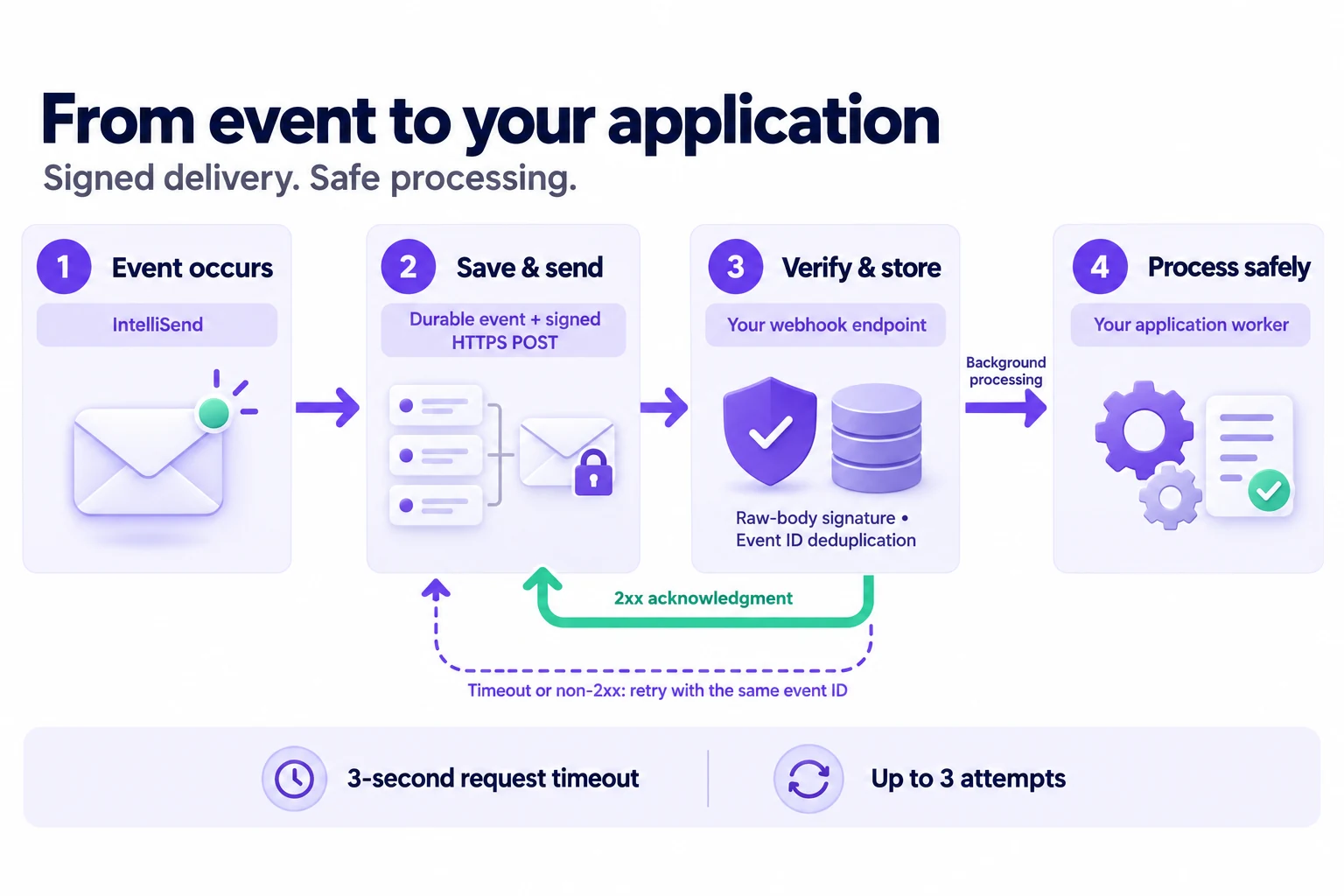
IntelliSend saves an event and sends a signed HTTPS request. Your endpoint verifies the raw-body signature, deduplicates and stores the event, returns 2xx, and processes it in the background. Failed requests retry with the same event ID.

Select the diagram to view it at full size.

  1. An event occurs. A tracked message changes status or campaign processing finishes or fails.
  2. IntelliSend saves and sends it. The event is saved durably, then queued for signed delivery to an enabled endpoint subscribed to that event.
  3. Your endpoint verifies and stores it. Check the signature against the original request bytes, then parse the JSON, deduplicate its id, and durably save or queue it before returning 2xx.
  4. Your application processes it. Run slower work in the background. If the request fails or times out, IntelliSend can retry with the same event ID.

The signing secret stays on your server. A successful webhook response confirms receipt by your application; it does not confirm delivery of the SMS to a handset.

Create an endpoint

Open Developer Tools → Webhooks, add a public HTTPS URL, and select the events you need. Store the signing secret securely on your receiver. Webhooks deliver events for sends owned by the endpoint's creator; they are not a workspace-wide event stream.

Use Send test to check connectivity. Test payloads contain data.test: true. A queued test means delivery has been scheduled; inspect its delivery result to confirm your receiver accepted it.

Event When it is emitted Data
message.status_updated A tracked message changes status Message ID, recipient, provider, send and delivery status
campaign.completed Campaign processing completes Campaign ID, status, sent and failed counts
campaign.failed Campaign processing fails Campaign ID, status, reason

Message events cover API SMS, campaign sends, and Quick SMS. OTP submissions do not emit these delivery webhooks. Message bodies and OTP codes are not included.

Example payload

All events use the same envelope. The data object varies by event.

{
  "id": "e6db5d09-beda-4aa0-b347-a9a0e29308a8",
  "event": "message.status_updated",
  "occurred_at": "2026-09-12T10:00:05+00:00",
  "data": {
    "message_id": 456,
    "campaign_id": 123,
    "reference": "order-1042",
    "source": "api",
    "recipient": "+61400000000",
    "status": "sent",
    "delivery_status": "delivered",
    "provider": "primary-sms",
    "provider_message_id": "provider-message-456",
    "error_code": null,
    "delivered_at": "2026-09-12T10:00:05+00:00",
    "updated_at": "2026-09-12T10:00:05+00:00"
  }
}

source is api or dashboard. Send status can be pending, sent, failed, or cancelled. Delivery status can be pending, queued, sent, delivered, undelivered, expired, failed, or unknown.

Campaign completion describes processing of the send, not confirmed delivery to every handset. Delivery receipts depend on provider support and can arrive later.

Verify the signature

The Signature header contains a hexadecimal HMAC-SHA256 signature of the exact raw request body, using your endpoint's signing secret. Verify it before trusting the JSON. Do not parse and re-encode the body before verification.

This Node.js helper uses the built-in crypto module. Pass the original request bytes and the header value from your HTTP server.

import { createHmac, timingSafeEqual } from 'node:crypto';

function validSignature(rawBody, signature, secret) {
  if (typeof signature !== 'string' || !/^[a-f0-9]{64}$/i.test(signature)) {
    return false;
  }
  const expected = createHmac('sha256', secret).update(rawBody).digest();
  const received = Buffer.from(signature, 'hex');
  return timingSafeEqual(expected, received);
}

After verification, parse the body and deduplicate on the envelope's id using durable storage. Persist or queue the event before returning a successful 2xx response. Keep processing fast: delivery requests time out after 3 seconds.

Retries and delivery history

Delivery can happen more than once. Failed requests retry with backoff, up to 3 attempts in total. Retries retain the event ID, so processing the same ID twice must not repeat your business action. Do not assume arrival order.

In Developer Tools, delivered means your webhook receiver returned a successful response. Handset delivery is represented by the payload's data.delivery_status.

Pause an endpoint to stop delivery while retaining its history. Do not expect missed events to replay automatically after resuming. Removing an endpoint also removes its delivery history.

Integration guides

MCP & AI

Use MCP (Model Context Protocol) to ask an AI client about your IntelliSend workspace. For example: “Summarize delivery over the last 7 days and show campaigns that need attention.” The client calls IntelliSend's reporting tools and uses their results to answer.

MCP is available when enabled by your IntelliSend operator. The current tool set is read-only: it cannot send SMS, send or verify OTPs, or change workspace settings.

When to use MCP

Your goal Use
Ask an AI client about campaigns, Quick Send, API SMS delivery or team counts MCP with OAuth
Send SMS, check a message, or send and verify OTPs from your application REST API with an API key
Receive delivery updates in your application Webhooks

You do not need to build another backend to connect Codex. IntelliSend already hosts the MCP server at https://your-workspace.example/mcp. Your AI client connects directly to it. If you are building your own application to send messages, call the REST API from your application backend so its API key stays private.

Connect your client

  1. Open Developer Tools → MCP & AI and copy the server URL for your workspace. Your account needs Developer Tools read access and the permissions required by each tool.
  2. Add https://your-workspace.example/mcp to a client that supports remote MCP over Streamable HTTP and OAuth.
  3. Complete the browser authorization flow with the intended workspace account. Complete any required account verification, review the client and requested access, then approve. The requested scope is mcp:use.
  4. Return to your client and request its available tools. Names and configuration screens vary by client.

The client handles MCP initialization, protocol requests, and OAuth tokens. REST API keys do not replace this authorization flow. If MCP is unavailable in your installation, the REST API and webhooks remain separate integration options.

Connect from the Codex terminal

These steps assume the Codex CLI is installed and you can start codex. Run the commands in your terminal on the same computer where you will complete browser login. Replace the example workspace URL with the server URL shown in IntelliSend.

1. Add IntelliSend.

codex mcp add intellisend --url "https://your-workspace.example/mcp"

Codex may start OAuth immediately when you add the server. Complete that flow if it opens. To sign in separately, or reconnect after access expires or is revoked, run:

codex mcp login intellisend --scopes mcp:use

2. Authorize in your browser.

Sign in to the correct IntelliSend workspace, complete any verification, and approve the connection. Keep the terminal running until it confirms success. Signing in to Codex itself and authorizing access to IntelliSend are separate steps. Do not paste an IntelliSend API key or your password into a prompt.

3. Check the connection and start Codex.

codex mcp list
codex

Inside the Codex session, enter /mcp to inspect the active servers. Then ask:

Use IntelliSend to list my 5 most recent campaigns.
Summarize delivery over the last 7 days, including sent, delivered,
failed, and awaiting-delivery counts. Include the reporting period.

A successful setup lets Codex call list_recent_campaigns and get_delivery_summary and return actual workspace results. An empty report can be valid for a workspace with no activity. A server appearing in codex mcp list confirms configuration; a successful tool call confirms access.

Optional: configure the server in a file.

Instead of the add command, you can add this entry to your Codex ~/.codex/config.toml, then run the login command above. Keep any existing configuration.

[mcp_servers.intellisend]
url = "https://your-workspace.example/mcp"

The Codex CLI and IDE extension share MCP configuration on the same host. When using a remote development machine, configure and authenticate on the host running Codex; its loopback callback must be reachable from the browser completing login. See the official Codex MCP setup guide for current client settings and callback configuration.

Connect ChatGPT or Claude

Use the same https://your-workspace.example/mcp URL for all clients. Each connection has its own OAuth authorization, and access stays within the connected workspace.

Client Setup
ChatGPT Where custom MCP connections are enabled, add the workspace URL in MCP server management and choose OAuth. Use Dynamic Client Registration (DCR) if a registration-method choice is shown.
Claude web or Desktop Add a custom connector using the workspace URL, then connect and authorize in IntelliSend. Leave optional OAuth client credentials empty to use automatic registration.
Claude Code Run the command below, start Claude Code and use /mcp to authenticate IntelliSend.
claude mcp add --transport http intellisend "https://your-workspace.example/mcp"

Clients register their callback URLs automatically when your operator permits dynamic registration. You do not need to invent a callback or create a separate backend. The consent page shows the callback destination: verify it and the workspace before approving. Codex and Claude Code return to a local app, so keep the client running on the computer receiving the callback.

IntelliSend currently supports DCR with PKCE. It does not advertise Client ID Metadata Documents (CIMD). If you previously forced CIMD in Codex, reconnect using:

codex mcp login intellisend --scopes mcp:use --oauth-client-registration dcr

See the official ChatGPT authentication guide, Claude connector authentication, and Claude Code MCP guide for current client settings and availability.

How authentication works
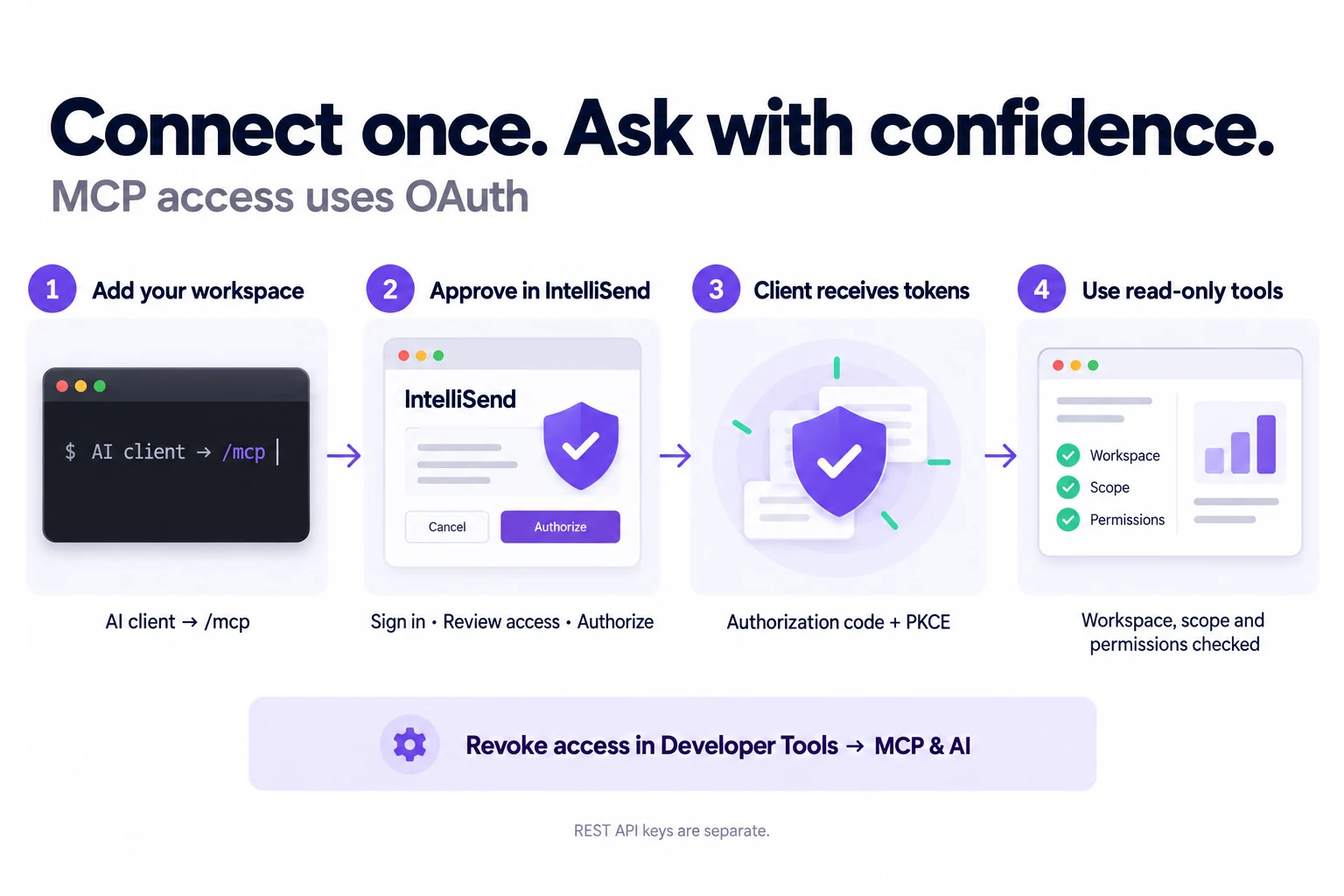
Add the workspace MCP server to your AI client, sign in and approve access in IntelliSend, let the client exchange an authorization code with PKCE for tokens, then use read-only tools subject to workspace, scope and permission checks. Access can be revoked in Developer Tools.

Select the diagram to view it at full size. Your client handles the token exchange; the steps below explain what happens.

  1. The client discovers the workspace's OAuth configuration and registers or identifies its OAuth client.
  2. You sign in and approve access in IntelliSend. The authorization-code flow uses PKCE to tie the login to the requesting client.
  3. The client exchanges that authorization for an access token and manages refresh tokens. It sends the access token when calling /mcp.
  4. IntelliSend checks the token's workspace and MCP audience, mcp:use scope, account access, and the permissions required by each tool.

There is no separate MCP API key to create. Keep using the same workspace server URL after login; an authorization for one workspace does not grant access to another.

Available tools

Tool Arguments Returns
list_recent_campaigns limit: integer, 1–50; default 20 Campaigns only, with status, recipient and delivery counts
get_campaign_report campaign_id: positive integer, required One campaign's routing, provider, status, counts, and delivery rate
get_delivery_summary days: 7 or 30; default 30 Workspace-wide rolling totals across campaigns, Quick Send and API SMS
get_completed_campaign_summary days: 7 or 30; default 30 Completed campaign totals; excludes Quick SMS
list_recent_quick_sends limit: integer, 1–50; default 20 Dashboard Quick Send and API SMS batches with delivery counts and source
get_quick_send_report quick_send_id: positive integer, required One Quick Send or API SMS batch's delivery report and source
get_team_statistics None Total members, active members, and pending invites

All tools require Developer Tools read access. Campaign and Quick Send tools also enforce campaign access, completed summaries require reporting access, and team statistics require member access. An authorized connection cannot bypass the user's current permissions.

Example: inspect a campaign

Ask your client: “Show the delivery report for campaign 123.”

It can call get_campaign_report with these arguments:

{
  "campaign_id": 123
}

The structured result includes generated_at and a campaign object with its ID, name, status, purpose, routing, provider or failover route, timestamps, recipient counts, and delivery counts. delivery_rate_percent measures delivered messages as a percentage of sent messages.

Example: inspect Quick Send and API SMS

Ask: “List my 5 latest quick sends, distinguish dashboard sends from API sends, and report delivery for the latest one.”

Call list_recent_quick_sends with:

{
  "limit": 5
}

Use an ID from its quick_sends result with get_quick_send_report:

{
  "quick_send_id": 123
}

An illustrative structured result:

{
  "generated_at": "2026-09-19T08:00:00+00:00",
  "quick_send": {
    "id": 123,
    "source": "api",
    "name": "Order update",
    "status": "completed",
    "purpose": "transactional",
    "routing_type": "direct",
    "provider": { "name": "Example provider", "slug": "example-provider" },
    "failover_route": null,
    "created_at": "2026-09-19T07:00:00+00:00",
    "completed_at": "2026-09-19T07:00:05+00:00",
    "recipients": 3,
    "sent": 3,
    "failed_to_send": 0,
    "delivered": 2,
    "delivery_failed": 0,
    "awaiting_delivery": 1,
    "delivery_rate_percent": 66.67
  }
}

source is quick_send for dashboard sends, api for REST API sends, or unknown when older records lack source metadata. Each ID identifies a send batch; recipient numbers and message content are excluded. Campaign tools reject Quick Send IDs, and Quick Send tools reject campaign IDs. The shared delivery summary includes both groups.

Example: review recent performance

Ask: “Summarize delivery over the last 7 days and show my 5 most recent campaigns.”

The client can make two tool calls. Arguments for get_delivery_summary:

{
  "days": 7
}

An illustrative structured result from get_delivery_summary:

{
  "period_days": 7,
  "from": "2026-09-05T10:00:00+00:00",
  "to": "2026-09-12T10:00:00+00:00",
  "generated_at": "2026-09-12T10:00:00+00:00",
  "period_type": "rolling",
  "sent": 120,
  "delivered": 114,
  "failed": 4,
  "awaiting_delivery": 2,
  "delivery_rate_percent": 95
}

Arguments for list_recent_campaigns:

{
  "limit": 5
}

Use get_completed_campaign_summary with {"days": 7} for completed campaign totals, and get_team_statistics with {} for team counts. Delivery totals use delivery-history timestamps; completed campaign totals use completion timestamps, so these reports describe different populations.

get_delivery_summary may reuse a workspace's result for up to 30 seconds by default. Its generated_at, from, and to describe the original calculation. Campaign and Quick Send reports query current data on each request; permissions are checked on every tool call.

Manage access

Review authorized clients in Developer Tools → MCP & AI. Revoking a connection invalidates that authorization and its refresh tokens. Reconnect through OAuth if access is needed again.

To sign out locally and remove the Codex server configuration:

codex mcp logout intellisend
codex mcp remove intellisend

Local logout or removal is separate from revoking the authorization in IntelliSend. Revoke it in Developer Tools → MCP & AI when the client should no longer have access.

Tools return reports and aggregate counts. They do not expose message bodies, recipient phone numbers, provider credentials, or OTP codes. Treat reports shared with an AI client according to your workspace's own data policies.

Connection troubleshooting

What you see What to check
MCP unavailable or /mcp returns 404 Confirm MCP is enabled for the installation and use the workspace server URL, including /mcp.
Login rejects the redirect URI or client registration Check whether the operator restricts callbacks. Reconnect to register the current client callback; a restricted installation must approve that exact host/path/query. Only native loopback ports may vary.
Registration returns HTML 405 or a Cloudflare challenge Ask the operator to check deployed OAuth discovery, the advertised registration route and edge rules. Callback validation returns a JSON OAuth error.
Browser login succeeds but the terminal keeps waiting Keep the original login command running and check that the browser can reach its callback. Remote terminals may need callback configuration.
Access expired, revoked, or unauthorized Run codex mcp login intellisend --scopes mcp:use again and sign in to the correct workspace.
A tool reports insufficient access Check the user's Developer Tools, campaign, reporting, or member permissions and the workspace's API entitlement. Signing in again does not grant missing permissions.
Server is configured but tools are missing Inspect /mcp inside Codex, confirm login completed, and start a fresh session if needed.
Too many requests Wait for Retry-After before retrying. Client registration allows 10 requests per minute per workspace and IP. See Errors & limits for tool limits.
An unused client is no longer recognized Registrations without completed consent expire after 30 days and are cleaned up daily. Remove the stale client configuration and reconnect to register again. Previously authorized clients remain reusable.

For self-hosted operators

The existing Laravel backend provides MCP tools and OAuth. Client setup does not require a separate Node.js service, custom plugin, or another API endpoint.

  • Complete the existing MCP deployment and client interoperability checks before enabling MCP_ENABLED. The feature is disabled by default.
  • Ensure the workspace origin routes /mcp, /mcp/oauth/*, /oauth/*, and OAuth discovery under /.well-known/ to the backend, while the login page remains available to the browser.
  • Use MCP_ALLOW_DYNAMIC_CLIENTS=true with an empty MCP_REDIRECT_URIS for automatic registration. A non-empty allowlist always restricts callbacks. For an allowlist-only installation, set MCP_ALLOW_DYNAMIC_CLIENTS=false; an empty list then denies all callbacks. HTTPS callbacks must match the registered URI exactly; native HTTP loopback callbacks may change only their port.
  • Existing non-empty callback allowlists remain restrictive after upgrading. Clear the list only when you intend to permit automatic registration, and rebuild the application configuration/route caches. To revoke every callback using an empty list, first disable dynamic admission.
  • Check the public discovery endpoints and registration route after deployment. The server must advertise its workspace /mcp resource, the registration endpoint, PKCE S256, and public token authentication method none.
  • Apply the tenant migrations before starting the updated API/workers. Keep the scheduler and default queue worker running for abandoned-registration cleanup. Existing/manual clients are preserved. Set MCP_DELIVERY_SUMMARY_CACHE_TTL to adjust aggregate freshness in seconds, or 0 to disable caching.

These examples describe the supported connection flow. Verify connect, tool access, token refresh, and revocation with the client versions you deploy before opening access to customers.

Integration guides

Errors & limits

Handle validation, retries, and asynchronous status explicitly so your integration stays predictable.

HTTP status codes

Status Meaning Next step
200 Successful lookup or OTP verification Read the response
202 SMS request recorded or OTP accepted/pending Inspect the response status; this is not a handset delivery receipt
401 Missing, invalid, expired, or revoked credential Check the bearer key and workspace URL
403 Credential lacks an ability or the user lacks permission Check key scopes and workspace access
404 Resource or route was not found Check the workspace URL and ID
409 An idempotent request is still being processed Retry later with the same key and payload
422 Validation, routing, consent, or OTP verification failed Read message and any field-level errors
502 OTP submission conclusively failed Retry with a new idempotency key after the resend cooldown
429 Rate limit reached Wait for Retry-After before retrying
5xx Server or upstream failure Back off; preserve the same idempotency key for sends

Validation errors may include an errors object. OTP verification failures use a single message without revealing whether the code was wrong, expired, or exhausted.

{
  "message": "The given data was invalid.",
  "errors": {
    "recipients": ["The recipients field is required."]
  }
}

Authentication, authorization, missing-resource, and server errors use an application/problem+json response with title, detail, instance, code, and link. Read detail for these errors instead of expecting a message field.

{
  "title": "Unauthenticated",
  "detail": "Unauthenticated.",
  "instance": "https://your-workspace.example/api/v1/messages",
  "code": "AUTH-401",
  "link": ""
}

Safe retries with Idempotency-Key

Use an Idempotency-Key on POST /messages and POST /otp/send for each logical send. The header is optional, up to 255 characters. Use the same key and the same payload when retrying that send.

Idempotency-Key: order-1042-confirmation
  • Same key and same payload: a completed request returns its saved result without sending again.
  • Same key with a different payload: 422 with an Idempotency-Key field error.
  • Request still in progress or its outcome uncertain: 409; retry with the same key after a delay.
  • SMS saved with data.queue.success: false: look up data.message.id before taking another action. A replay does not enqueue it again.

Keys are scoped to the user and endpoint, not globally. The default retention window is 7 days and can be configured by your operator. Use a new key for a new intended send, and do not rely on indefinite deduplication.

After a network timeout, do not switch to a new key just to get a successful response. The original send may already have happened.

Input limits

Input Limit
SMS recipients 1–1,000 distinct E.164 phone numbers per request
SMS message 1–1,600 characters
Sender ID Up to 11 letters, digits, or spaces; provider rules also apply
Customer reference Up to 100 characters
OTP purpose Up to 100 letters, digits, ., _, :, or -
OTP code length 6–8 digits; default 6
OTP sender Registered name or number, up to 50 characters; owned by the selected provider and tenant
OTP lifetime 1–10 minutes; default 5
OTP failed verification attempts 5 per user, recipient, and purpose in a 15-minute window; resending does not reset the count
OTP resend cooldown At least 30 seconds per tenant and recipient; unresolved sends block resending

Compatibility: new sends requesting 4–5 digits or an 11–15 minute lifetime now return validation errors. Previously issued codes remain verifiable until their original expiry.

An OTP is valid once. A new code for the same user, recipient, and purpose invalidates the previous code. Send the verification code as a string to preserve leading zeroes.

For service setup, send and verify examples, provider selection, and template rules, follow the OTP services guide. Saved services connect directly through service_slug; verify using the returned request_id. Each service owns one provider and sender. OTP failover is unsupported. Existing explicit-purpose integrations remain supported.

Rate limits and request logs

Outside local development, the developer REST API allows 30 requests per minute per workspace and user; MCP allows 60. Requests share the relevant user limit across credentials. Respect Retry-After on throttled responses.

MCP client registration has a separate limit of 10 requests per minute per workspace and IP, including local development. Changing the client name does not reset that limit.

Use the Request-Id response header to correlate a request with Developer Tools request logs. Logs contain request metadata rather than API keys, message bodies, or OTP codes, and can appear after a short delay. The default log retention is 30 days.

When reporting a problem, include the workspace, endpoint, timestamp, request ID, HTTP status, and a redacted response. Keep credentials out of support messages.

SMS API

Send SMS

POST /api/v1/messages Bearer API key

Requires the messages:send ability. Send to 1–1,000 distinct E.164 recipients.

Omitted routing uses the API key's routing, which defaults to IntelliSend. Explicit request routing overrides the key; workspace Quick SMS defaults do not apply.

A 202 response records the request, not handset delivery. Inspect data.queue.success: when false, check the message status before retrying. Use the same Idempotency-Key for retries of the same send. See routing and safe retries.

Request

{
    "recipients": [
        "+61400000000"
    ],
    "message": "Your order 1042 is confirmed.",
    "message_purpose": "transactional",
    "reference": "order-1042"
}
curl --request POST \
    "https://your-workspace.example/api/v1/messages" \
    --header "Authorization: Bearer {YOUR_API_KEY}" \
    --header "Idempotency-Key: sms-20260912-001" \
    --header "Content-Type: application/json" \
    --header "Accept: application/json" \
    --data "{
    \"recipients\": [
        \"+61400000000\"
    ],
    \"message\": \"Your order 1042 is confirmed.\",
    \"message_purpose\": \"transactional\",
    \"reference\": \"order-1042\"
}"
const url = new URL(
    "https://your-workspace.example/api/v1/messages"
);

const headers = {
    "Authorization": "Bearer {YOUR_API_KEY}",
    "Idempotency-Key": "sms-20260912-001",
    "Content-Type": "application/json",
    "Accept": "application/json",
};

let body = {
    "recipients": [
        "+61400000000"
    ],
    "message": "Your order 1042 is confirmed.",
    "message_purpose": "transactional",
    "reference": "order-1042"
};

fetch(url, {
    method: "POST",
    headers,
    body: JSON.stringify(body),
}).then(response => response.json());
$client = new \GuzzleHttp\Client();
$url = 'https://your-workspace.example/api/v1/messages';
$response = $client->post(
    $url,
    [
        'headers' => [
            'Authorization' => 'Bearer {YOUR_API_KEY}',
            'Idempotency-Key' => 'sms-20260912-001',
            'Content-Type' => 'application/json',
            'Accept' => 'application/json',
        ],
        'json' => [
            'recipients' => ['+61400000000'],
            'message' => 'Your order 1042 is confirmed.',
            'message_purpose' => 'transactional',
            'reference' => 'order-1042',
        ],
    ]
);
$body = $response->getBody();
print_r(json_decode((string) $body));
import requests
import json

url = 'https://your-workspace.example/api/v1/messages'
payload = {
    "recipients": [
        "+61400000000"
    ],
    "message": "Your order 1042 is confirmed.",
    "message_purpose": "transactional",
    "reference": "order-1042"
}
headers = {
  'Authorization': 'Bearer {YOUR_API_KEY}',
  'Idempotency-Key': 'sms-20260912-001',
  'Content-Type': 'application/json',
  'Accept': 'application/json'
}

response = requests.request('POST', url, headers=headers, json=payload)
response.json()

Use these examples on your server. Replace the workspace URL, key, and recipient before running.

Response

{
    "message": "SMS queued.",
    "data": {
        "message": {
            "id": 123,
            "reference": "order-1042",
            "status": "queued",
            "total_recipients": 1,
            "queued_count": 1,
            "sent_count": 0,
            "failed_count": 0,
            "created_at": "2026-09-12T10:00:00+00:00",
            "completed_at": null
        },
        "queue": {
            "success": true,
            "campaign_id": 123,
            "batch_id": "97d7b8db-45cc-4498-92bf-a9739436c287",
            "total_recipients": 1,
            "requested_recipients": 1,
            "excluded_recipients": 0,
            "message": "Campaign queued for sending"
        }
    }
}
{
    "message": "SMS request saved. Check the campaign status.",
    "data": {
        "message": {
            "id": 123,
            "reference": "order-1042",
            "status": "paused",
            "total_recipients": 1,
            "queued_count": 1,
            "sent_count": 0,
            "failed_count": 0,
            "created_at": "2026-09-12T10:00:00+00:00",
            "completed_at": null
        },
        "queue": {
            "success": false,
            "campaign_id": 123,
            "message": "Queue dispatch could not be confirmed. Review this campaign before resuming."
        }
    }
}
{
    "message": "A request with this Idempotency-Key is still being processed. Retry with the same key shortly."
}
{
    "message": "The given data was invalid.",
    "errors": {
        "recipients": [
            "The recipients field is required."
        ]
    }
}
Request headers
Authorization
Bearer {YOUR_API_KEY}
Idempotency-Key
sms-20260912-001
Content-Type
application/json
Accept
application/json

Idempotency-Key is optional but recommended for sends. See retry rules.

Body parameters

recipients string[] Required

1–1,000 distinct phone numbers in E.164 format.

message string Required

SMS content, 1–1,600 characters. For marketing, use {opt_out_url} once to choose the opt-out link position.

message_purpose string Optional

Defaults to transactional.

Allowed: transactional marketing

sender_id string Optional

Up to 11 letters, digits, or spaces. Required when the selected provider requires a sender ID.

routing_type string Optional

Direct uses one provider; failover uses an enabled route. Omit all routing fields to use the key's routing.

Allowed: direct failover

provider_slug string Optional

Active provider slug. Direct routing without a provider slug selects IntelliSend.

failover_route_slug string Optional

Required only when routing_type is failover; omit provider_slug in that case.

reference string Optional

Customer reference, up to 100 characters, stored with the campaign.

Response fields

data.message.id integer

Campaign ID to use for a status lookup.

data.message.reference string

Your customer reference, or null.

data.message.status string

Current campaign processing status; not a handset delivery receipt.

data.message.total_recipients integer

Number of recipients recorded on the campaign.

data.message.queued_count integer

Messages currently queued.

data.message.sent_count integer

Messages submitted to a provider, not confirmed handset deliveries.

data.message.failed_count integer

Messages that failed to send.

data.message.created_at string

ISO 8601 creation timestamp.

data.message.completed_at string

ISO 8601 completion timestamp, or null while incomplete.

data.queue.success boolean

Whether the request was successfully queued. If false, check status before taking another action.

data.queue.requested_recipients integer

Requested recipient count; present when queued successfully.

data.queue.excluded_recipients integer

Recipients excluded from the queued send; present when queued successfully.

SMS API

Get message status

GET /api/v1/messages/{campaign} Bearer API key

Requires the messages:read ability and access to the campaign. Returns the campaign's current send counters.

sent_count means provider submission, not confirmed handset delivery. Use webhooks for delivery updates where supported. Use this endpoint to inspect a send that returned data.queue.success: false.

Request

curl --request GET \
    --get "https://your-workspace.example/api/v1/messages/123" \
    --header "Authorization: Bearer {YOUR_API_KEY}" \
    --header "Content-Type: application/json" \
    --header "Accept: application/json"
const url = new URL(
    "https://your-workspace.example/api/v1/messages/123"
);

const headers = {
    "Authorization": "Bearer {YOUR_API_KEY}",
    "Content-Type": "application/json",
    "Accept": "application/json",
};


fetch(url, {
    method: "GET",
    headers,
}).then(response => response.json());
$client = new \GuzzleHttp\Client();
$url = 'https://your-workspace.example/api/v1/messages/123';
$response = $client->get(
    $url,
    [
        'headers' => [
            'Authorization' => 'Bearer {YOUR_API_KEY}',
            'Content-Type' => 'application/json',
            'Accept' => 'application/json',
        ],
    ]
);
$body = $response->getBody();
print_r(json_decode((string) $body));
import requests
import json

url = 'https://your-workspace.example/api/v1/messages/123'
headers = {
  'Authorization': 'Bearer {YOUR_API_KEY}',
  'Content-Type': 'application/json',
  'Accept': 'application/json'
}

response = requests.request('GET', url, headers=headers)
response.json()

Use these examples on your server. Replace the workspace URL, key, and recipient before running.

Response

{
    "data": {
        "message": {
            "id": 123,
            "reference": "order-1042",
            "status": "completed",
            "total_recipients": 1,
            "queued_count": 0,
            "sent_count": 1,
            "failed_count": 0,
            "created_at": "2026-09-12T10:00:00+00:00",
            "completed_at": "2026-09-12T10:00:03+00:00"
        }
    }
}
{
    "title": "Resource not found",
    "detail": "The requested resource was not found",
    "instance": "https://your-workspace.example/api/v1/messages/123",
    "code": "NOT-404",
    "link": ""
}
Request headers
Authorization
Bearer {YOUR_API_KEY}
Content-Type
application/json
Accept
application/json

Path parameters

campaign integer Required

IntelliSend campaign ID.

Response fields

data.message.id integer

Campaign ID returned by the send endpoint.

data.message.reference string

Your customer reference, or null.

data.message.status string

Current campaign processing status.

data.message.total_recipients integer

Number of recipients recorded on the campaign.

data.message.queued_count integer

Messages currently queued.

data.message.sent_count integer

Messages submitted to a provider, not confirmed handset deliveries.

data.message.failed_count integer

Messages that failed to send.

data.message.created_at string

ISO 8601 creation timestamp.

data.message.completed_at string

ISO 8601 completion timestamp, or null while incomplete.

OTP API

Send OTP

POST /api/v1/otp/send Bearer API key

Requires the otp:send ability. Sends through IntelliSend using tenant credits, or a connected customer-funded provider. An approved custom sender or the tenant's configured IntelliSend sender can be used.

The API stores only the code hash and never returns the plaintext code. A new code invalidates the previous code for the same user, recipient, and purpose. Use the same Idempotency-Key when retrying this send. See provider requirements.

Use service_slug to load a saved OTP service's current settings, or provide purpose and optional settings explicitly. Do not mix service_slug with purpose, code_length, expires_in_minutes, template_slug, message_template, provider_slug, sender_id, routing_type, or failover_route_slug. See the OTP service guide. Save data.request_id to verify independently of later service edits.

Request

{
    "recipient": "+61400000000",
    "service_slug": "0195f798-5a50-7bc7-a1b5-36e303be0024"
}
curl --request POST \
    "https://your-workspace.example/api/v1/otp/send" \
    --header "Authorization: Bearer {YOUR_API_KEY}" \
    --header "Idempotency-Key: otp-20260912-001" \
    --header "Content-Type: application/json" \
    --header "Accept: application/json" \
    --data "{
    \"recipient\": \"+61400000000\",
    \"service_slug\": \"0195f798-5a50-7bc7-a1b5-36e303be0024\"
}"
const url = new URL(
    "https://your-workspace.example/api/v1/otp/send"
);

const headers = {
    "Authorization": "Bearer {YOUR_API_KEY}",
    "Idempotency-Key": "otp-20260912-001",
    "Content-Type": "application/json",
    "Accept": "application/json",
};

let body = {
    "recipient": "+61400000000",
    "service_slug": "0195f798-5a50-7bc7-a1b5-36e303be0024"
};

fetch(url, {
    method: "POST",
    headers,
    body: JSON.stringify(body),
}).then(response => response.json());
$client = new \GuzzleHttp\Client();
$url = 'https://your-workspace.example/api/v1/otp/send';
$response = $client->post(
    $url,
    [
        'headers' => [
            'Authorization' => 'Bearer {YOUR_API_KEY}',
            'Idempotency-Key' => 'otp-20260912-001',
            'Content-Type' => 'application/json',
            'Accept' => 'application/json',
        ],
        'json' => [
            'recipient' => '+61400000000',
            'service_slug' => '0195f798-5a50-7bc7-a1b5-36e303be0024',
        ],
    ]
);
$body = $response->getBody();
print_r(json_decode((string) $body));
import requests
import json

url = 'https://your-workspace.example/api/v1/otp/send'
payload = {
    "recipient": "+61400000000",
    "service_slug": "0195f798-5a50-7bc7-a1b5-36e303be0024"
}
headers = {
  'Authorization': 'Bearer {YOUR_API_KEY}',
  'Idempotency-Key': 'otp-20260912-001',
  'Content-Type': 'application/json',
  'Accept': 'application/json'
}

response = requests.request('POST', url, headers=headers, json=payload)
response.json()

Use these examples on your server. Replace the workspace URL, key, and recipient before running.

Response

{
    "message": "OTP submitted.",
    "data": {
        "request_id": "0195f79a-c230-748b-b868-2792aa113579",
        "status": "accepted",
        "expires_at": "2026-09-24T12:05:00+00:00",
        "provider": "intellisend",
        "sender_id": "61485900180",
        "billing": {
            "source": "intellisend_credits",
            "status": "charged",
            "credits_charged": 1
        }
    }
}
{
    "message": "A request with this Idempotency-Key is still being processed. Retry with the same key shortly."
}
{
    "message": "The given data was invalid.",
    "errors": {
        "recipient": [
            "The recipient field is required."
        ]
    }
}
Request headers
Authorization
Bearer {YOUR_API_KEY}
Idempotency-Key
otp-20260912-001
Content-Type
application/json
Accept
application/json

Idempotency-Key is optional but recommended for sends. See retry rules.

Body parameters

recipient string Required

Recipient phone number in E.164 format.

service_slug string Optional

UUID slug copied from More services → OTP. Loads settings from this organization's saved service. Omit explicit settings, provider, sender, and routing when using it.

purpose string Optional

Required without service_slug; omit when using a service. Stable verification purpose, up to 100 letters, digits, dots, underscores, colons, or hyphens.

code string Optional

Forbidden in send requests. The server generates the code.

template_slug string Optional

Without service_slug: enabled transactional template in this organization. Requires message.read permission. Mutually exclusive with message_template.

message_template string Optional

Without service_slug: inline message with exactly one {code} and no other placeholders. Omit both template fields for "Your verification code is {code}.". Must fit one rendered SMS segment.

code_length integer Optional

Without service_slug: code length from 6 to 8; defaults to 6.

expires_in_minutes integer Optional

Without service_slug: lifetime from 1 to 10 minutes; defaults to 5.

sender_id string Optional

Without service_slug: registered sender name or number, up to 50 characters. Omit for the configured IntelliSend sender. Custom senders must be approved and belong to this tenant and provider.

routing_type string Optional

Without service_slug: direct only. OTP does not support failover.

Allowed: direct

provider_slug string Optional

Without service_slug: active SMS provider slug. Omit routing fields to use the key's direct provider, then IntelliSend by default. IntelliSend supports Australian mobile numbers.

failover_route_slug string Optional

Forbidden for OTP. Select one provider or a saved service.

Response fields

data.expires_at string

ISO 8601 timestamp after which the code cannot be verified.

data.provider string

Slug of the provider that accepted the submission.

data.sender_id string

Actual registered sender selected for this request, or null for the connected provider default.

data.billing object

Billing source, settlement status, and net IntelliSend credits charged. Connected-provider charges are external.

data.request_id string

Stable OTP request identifier.

data.status string

accepted, pending, or failed. Pending means acceptance is uncertain; retry the same Idempotency-Key to check without resending.

OTP API

Verify OTP

POST /api/v1/otp/verify Bearer API key

Requires the otp:verify ability. Use the same user and recipient as the send request, with its returned request_id. Existing integrations can supply the original purpose instead. Never supply both selectors.

A code is valid once only. It is rejected after expiry or five failed verification attempts within 15 minutes. Resending does not reset that count. Send the code as a string to preserve leading zeroes.

Request

{
    "recipient": "+61400000000",
    "request_id": "0195f79a-c230-748b-b868-2792aa113579",
    "code": "012345"
}
curl --request POST \
    "https://your-workspace.example/api/v1/otp/verify" \
    --header "Authorization: Bearer {YOUR_API_KEY}" \
    --header "Content-Type: application/json" \
    --header "Accept: application/json" \
    --data "{
    \"recipient\": \"+61400000000\",
    \"request_id\": \"0195f79a-c230-748b-b868-2792aa113579\",
    \"code\": \"012345\"
}"
const url = new URL(
    "https://your-workspace.example/api/v1/otp/verify"
);

const headers = {
    "Authorization": "Bearer {YOUR_API_KEY}",
    "Content-Type": "application/json",
    "Accept": "application/json",
};

let body = {
    "recipient": "+61400000000",
    "request_id": "0195f79a-c230-748b-b868-2792aa113579",
    "code": "012345"
};

fetch(url, {
    method: "POST",
    headers,
    body: JSON.stringify(body),
}).then(response => response.json());
$client = new \GuzzleHttp\Client();
$url = 'https://your-workspace.example/api/v1/otp/verify';
$response = $client->post(
    $url,
    [
        'headers' => [
            'Authorization' => 'Bearer {YOUR_API_KEY}',
            'Content-Type' => 'application/json',
            'Accept' => 'application/json',
        ],
        'json' => [
            'recipient' => '+61400000000',
            'request_id' => '0195f79a-c230-748b-b868-2792aa113579',
            'code' => '012345',
        ],
    ]
);
$body = $response->getBody();
print_r(json_decode((string) $body));
import requests
import json

url = 'https://your-workspace.example/api/v1/otp/verify'
payload = {
    "recipient": "+61400000000",
    "request_id": "0195f79a-c230-748b-b868-2792aa113579",
    "code": "012345"
}
headers = {
  'Authorization': 'Bearer {YOUR_API_KEY}',
  'Content-Type': 'application/json',
  'Accept': 'application/json'
}

response = requests.request('POST', url, headers=headers, json=payload)
response.json()

Use these examples on your server. Replace the workspace URL, key, and recipient before running.

Response

{
    "message": "OTP verified."
}
{
    "message": "The verification code is invalid or expired."
}
Request headers
Authorization
Bearer {YOUR_API_KEY}
Content-Type
application/json
Accept
application/json

Body parameters

recipient string Required

Recipient phone number in E.164 format.

purpose string Optional

Required without request_id. The original purpose at send time; omit when verifying by request_id.

request_id string Optional

The data.request_id returned by send. Recommended for saved services; remains valid after service edits or deletion. Mutually exclusive with purpose.

code string Required

Numeric verification code, 4–8 digits. Preserve leading zeroes.

Response fields

message string

Verification result. Invalid, expired, or exhausted codes share the same failure message.